Level 3 — The Web
"The web is the nervous system of modern computing — it connects everything, transports everything, and is where nearly all living software meets its users."
In Level 0, you understood the machine. In Level 1, the language the machine understands. In Level 2, how data is organized and persisted. Now we move to the layer that turned isolated computers into a planetary organism: the Web.
If modern computing were a human body, the web would be the nervous system — billions of connections transporting information between organs that, on their own, would be nothing but inert mass. Every chatbot you use, every AI system you query, every interface where you interact with technology: it all passes through the web.
1. Internet vs Web
The first fundamental distinction: Internet and Web are not the same thing.
The Internet is the physical infrastructure — undersea cables, fiber optics, routers, satellites, cell towers. It is the mesh of connections that allows a computer in New York to communicate with a server in Tokyo. The Internet has existed since the 1960s (as ARPANET) and carries many types of traffic: email, file transfers, video streaming, online games.
The Web (World Wide Web) is an application that runs on top of the Internet. It was invented by Tim Berners-Lee in 1989 and consists of pages linked together by hyperlinks, accessed through browsers, using specific protocols (HTTP) and specific languages (HTML). The web is just one of the many things that travel across the Internet — but it is by far the most visible.
Analogy: think of roads and a postal service. The Internet is the roads — the physical transport infrastructure. The Web is the postal service that uses those roads: it has its own addressing system (URLs), its own package format (HTML pages), and its own delivery rules (HTTP). There are other "services" using the same roads — freight trucks (FTP), ambulances (VoIP), delivery motorcycles (streaming) — but the postal service (the web) is the most used in everyday life.
2. URL — Uniform Resource Locator
If the web is a postal service, every letter needs an address. On the web, that address is the URL — Uniform Resource Locator.
A URL is the string you type into the browser. Let's dissect one:
https://www.example.com:443/products/t-shirts?color=blue&size=M#reviews
| Part | Example | What it is |
|---|---|---|
| Protocol | https:// | The "language" used in the communication (HTTP or HTTPS) |
| Subdomain | www | An optional subdivision of the domain |
| Domain | example.com | The server's human-readable "name" |
| Port | :443 | The "apartment number" on the server (usually omitted) |
| Path | /products/t-shirts | The location of the resource within the server |
| Query params | ?color=blue&size=M | Filters and parameters sent along with the request |
| Fragment | #reviews | An anchor that points to a specific section of the page |
Analogy: a URL is a full postal address. The protocol is the type of service (registered mail vs standard mail). The domain is the city and street. The path is the house number. The query params are additional instructions for the mail carrier ("deliver to the back door"). The fragment is the specific room inside the house ("leave it in the kitchen").
3. DNS — Domain Name System
When you type www.google.com into the browser, your computer has no idea what "google.com" means. Computers communicate using numbers — IP addresses like 142.250.79.46. Someone needs to translate the human-readable name into a number. That "someone" is the DNS — Domain Name System.
DNS is a global network of servers whose sole purpose is to answer the question: "what is the IP address for this domain name?"
The process works like this:
- You type
www.google.cominto the browser - Your computer asks the configured DNS server: "what IP corresponds to this name?"
- The DNS checks its database (or asks other DNS servers, in a chain)
- It responds:
142.250.79.46 - Your browser now connects directly to that IP
Analogy: DNS is a giant phone book. You know the person's name (domain), but you need their phone number (IP) to call them. The phone book doesn't make the call — it only translates names into numbers. Without it, you would have to memorize numeric sequences for every site you wanted to visit.
DNS is invisible in day-to-day life, but it is absolutely fundamental. When someone says "the site is down," the problem is often with the DNS — the "phone number" changed and nobody updated the book.
4. HTTP/HTTPS — The Protocol
Now that we know the address (URL) and how to find the server (DNS), we need a common language for the conversation between your browser and the server. That language is HTTP — HyperText Transfer Protocol.
HTTP works on a simple model: request and response. The browser asks for something, the server responds.
Request
An HTTP request has:
- Method — what you want to do
- URL — where you want to do it
- Headers — metadata about the request (who you are, what format you accept, etc.)
- Body — data you are sending (not always present)
HTTP Methods
| Method | What it does | Restaurant analogy |
|---|---|---|
| GET | Fetch/read information | "Bring me the menu" |
| POST | Send/create new information | "I'd like to place this order" |
| PUT | Update/replace existing information | "Swap my dish for a different one" |
| DELETE | Remove information | "Cancel my order" |
Response
The server responds with:
- Status code — a number that summarizes the result
- Headers — metadata about the response
- Body — the actual content (the HTML page, the JSON data, the image)
Status Codes
Status codes are grouped by their hundreds:
| Code | Meaning | Plain English |
|---|---|---|
| 200 | OK | "Here's what you asked for" |
| 301 | Moved Permanently | "That content moved to a new address, I'll redirect you" |
| 404 | Not Found | "That doesn't exist here" |
| 500 | Internal Server Error | "Something broke on my end, sorry" |
Full analogy: HTTP is like ordering food at a restaurant. You (the browser) place an order with the waiter (HTTP request), specifying what you want (method GET, POST...). The waiter takes the order to the kitchen (server). The kitchen prepares and returns the dish (response) with a receipt (status code): "order delivered" (200), "that dish isn't on the menu" (404), or "the kitchen caught fire" (500).
HTTPS — the secure version
HTTPS is HTTP with encryption. The "S" stands for Secure. In practice, it means the communication between your browser and the server is encrypted — nobody in the middle can read the content. Today, virtually the entire web uses HTTPS. The padlock in your browser indicates this protection.
5. HTML — HyperText Markup Language
When the server responds to a GET request with a page, what it sends is HTML — HyperText Markup Language. HTML is not a programming language. It is a markup language: it describes the structure of content.
HTML works with tags — labels that wrap content and tell the browser what each part is.
<html>
  <head>
    <title>My Page</title>
  </head>
  <body>
    <h1>Welcome</h1>
    <p>This is a paragraph of text.</p>
    <a href="https://example.com">Click here</a>
    <img src="photo.jpg" alt="A beautiful photo" />
  </body>
</html>
Essential tags
| Tag | What it does | House analogy |
|---|---|---|
<html> | Wraps the entire page | The property lot |
<head> | Metadata (title, settings) | The blueprint — not visible, but defines everything |
<body> | The visible content of the page | The house itself |
<div> | A generic block/container | A room |
<p> | Text paragraph | A paragraph in a document |
<h1> to <h6> | Headings (h1 = largest, h6 = smallest) | Chapter title, subtitle, sub-subtitle... |
<a> | Link (anchor) to another page | A door that leads somewhere else |
<img> | Image | A painting on the wall |
<form> | Form for data input | A form for the visitor to fill out |
<input> | Input field (text, checkbox, etc.) | A blank field on the form |
<button> | Clickable button | A doorbell |
<table> | Data table | A printed spreadsheet |
<ul> / <ol> / <li> | Lists (unordered / ordered / item) | A shopping list |
<span> | Inline text span | A highlighted word within a sentence |
Analogy: HTML is the structural blueprint of a house. It defines how many rooms exist, where the doors and windows are, where the kitchen is and where the bathroom is. It says nothing about colors, decoration, or whether the faucet works — just the pure structure.
6. CSS — Cascading Style Sheets
If HTML is the structure, CSS is the appearance. CSS — Cascading Style Sheets — controls everything visual: colors, fonts, spacing, layouts, animations.
CSS works with three core concepts:
- Selector — who the style applies to (which tag, which class, which ID)
- Property — what is being styled (color, size, margin)
- Value — how it is being styled (blue, 16px, 2rem)
h1 {
  color: #d97757;
  font-family: 'Cabinet Grotesk', sans-serif;
  font-size: 2.5rem;
}

p {
  color: #141413;
  font-family: 'Lora', serif;
  line-height: 1.8;
}
The Box Model
Every HTML element is a "box" with four layers:
- Content — the content itself (text, image)
- Padding — space between the content and the border
- Border — the border around it
- Margin — space between the border and neighboring elements
Think of a painting on the wall: the content is the artwork, the padding is the space between the artwork and the frame, the border is the frame, and the margin is the space between the frame and other paintings next to it.
Responsive Design
Modern sites need to work on screens of all sizes — from a phone to a widescreen monitor. CSS offers media queries that let you apply different styles depending on screen size. That's how the same site can have three columns on desktop and a single column on mobile.
Analogy: CSS is the interior design of the house. The blueprint (HTML) already exists — the interior designer chooses the wall color, the type of flooring, the lighting, the furniture arrangement. Two spaces with the same blueprint can look completely different depending on the interior design applied.
7. JavaScript — The Behavior Layer
HTML structures. CSS beautifies. JavaScript makes things happen.
JavaScript is the programming language of the web. It is what enables:
- Buttons that respond to clicks
- Forms that validate data before submission
- Content that appears and disappears without reloading the page
- Interactive animations
- Real-time communication with servers
- Dynamic content updates
When you type something into Google and suggestions appear instantly, that's JavaScript. When a notification pops up on screen, JavaScript. When a chatbot replies in real time with text appearing word by word — JavaScript.
Analogy: if HTML is the house's blueprint and CSS is the interior design, JavaScript is the electrical and plumbing system — the things that move and respond. The switch that turns on the light, the faucet that runs water, the air conditioner that reacts to temperature, the gate that opens with a remote control. Without JavaScript, the house exists and looks nice, but nothing works.
8. DOM — Document Object Model
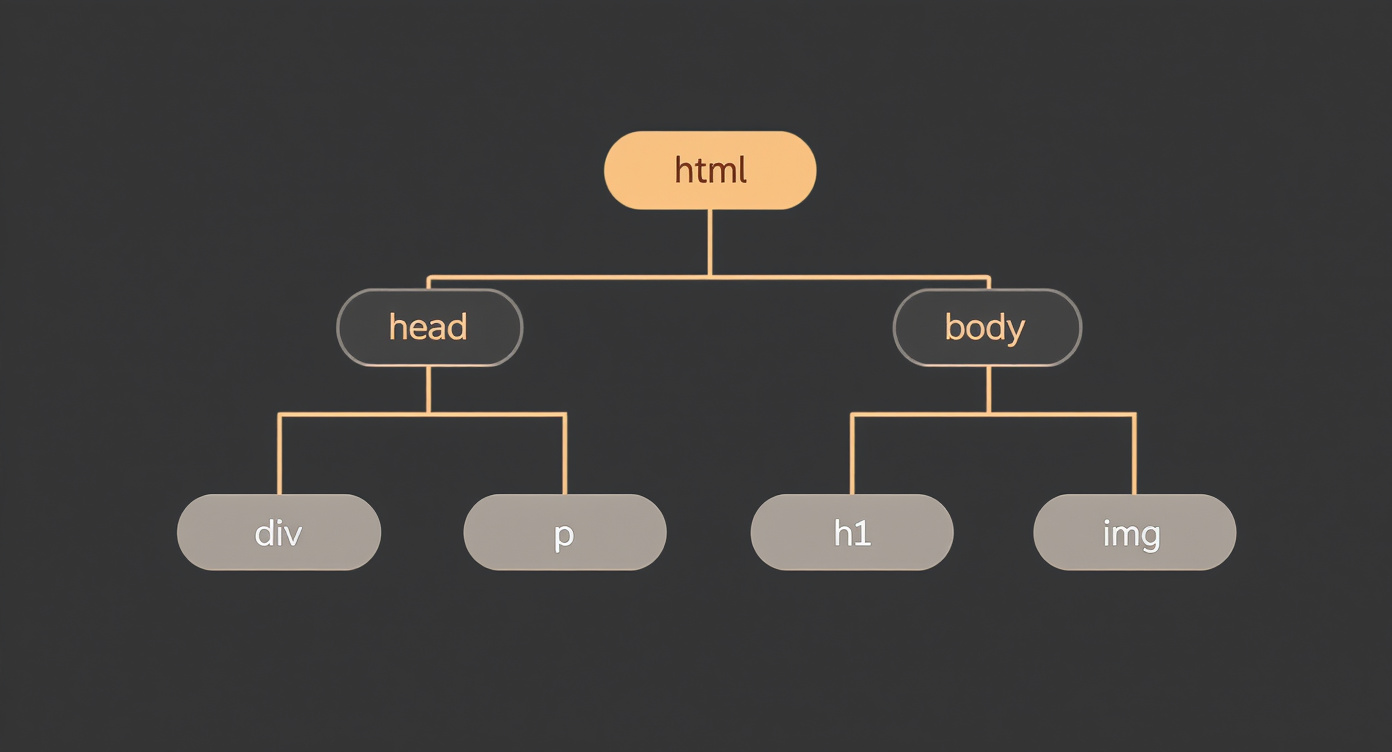
When your browser receives an HTML file, it doesn't display the raw text. It interprets the HTML and builds an internal structure called the DOM — Document Object Model.
The DOM is a tree. Each HTML tag becomes a node in that tree, with parent-child relationships:
document
  └── html
       ├── head
       │    └── title
       └── body
            ├── h1
            ├── p
            └── div
                 ├── p
                 └── a
The DOM matters for one central reason: it is the interface that JavaScript uses to manipulate the page. When JavaScript "changes the text of a paragraph" or "adds a new element," it is modifying the DOM — and the browser reflects those changes visually in real time.
That's why web pages can be dynamic without reloading: JavaScript modifies the DOM tree, and the browser redraws the screen.
For the SSA, understanding the DOM means understanding that a web page is not a static document — it is a living structure that can be queried, manipulated, and transformed by code at any moment.
9. The Browser
The browser — Chrome, Firefox, Safari, Edge — is much more than a window where sites appear. It is a sophisticated piece of software that performs multiple functions:
- Resolves DNS — translates the domain into an IP
- Makes the HTTP request — asks the server for the page
- Receives the HTML, CSS, and JavaScript — downloads all the files
- Parses the HTML — interprets the tags and builds the DOM
- Applies the CSS — calculates how each element should be displayed
- Executes the JavaScript — runs the code that makes the page interactive
- Renders — draws everything on screen, pixel by pixel
The rendering engine is the heart of the browser. Chrome uses Blink, Firefox uses Gecko, Safari uses WebKit. That's why, occasionally, a site can look slightly different across different browsers.
DevTools
Every modern browser includes DevTools (developer tools) — accessible with F12 or right-click and "Inspect." DevTools lets you:
- View the HTML and DOM of the page in real time
- View and edit CSS live
- Monitor HTTP requests
- Execute JavaScript in the console
- Analyze performance
Even without being a programmer, knowing that DevTools exists is powerful. It is the "X-ray" of any web page — and can reveal how a chatbot is integrated, what APIs a product is calling, or how an interface is structured.
10. Forms and Input
The web is not only about consuming information — it is also about sending information. Forms are the primary mechanism by which users send data to servers.
An HTML form consists of:
<form>— the container that defines where the data will be sent<input>— text fields, checkboxes, radio buttons, password fields, date pickers<textarea>— long text fields<select>— dropdown menus<button>— the submit button
When a user fills out a form and clicks "Submit," the browser packages all the data and makes an HTTP request (usually POST) to the server.
Validation
Data can be validated at two points:
- In the browser (client-side) — quick checks like "does the email field contain an @?" or "is the password at least 8 characters?"
- On the server (server-side) — definitive checks, because anything running in the browser can be bypassed
Every chatbot interface where the user types a message and presses Enter is, in essence, a form. The text box is an <input> or <textarea>, and the submission is a POST to an API.
11. Cookies and Local Storage
The web, by nature, is stateless — the server doesn't "remember" you between one request and the next. Each HTTP request is independent. But sites clearly do remember you: your login persists, your shopping cart survives a page refresh, your preferences are maintained.
This happens through storage mechanisms in the browser:
Cookies
Cookies are small pieces of data that the server sends to the browser, and that the browser automatically resends with every subsequent request. They work like this:
- You log into a site
- The server responds with a cookie: "session=abc123"
- On every future request, your browser includes that cookie
- The server reads the cookie and knows who you are
Cookies can be session cookies (they disappear when you close the browser) or persistent (they last days, weeks, or months).
Local Storage
Local Storage is simpler and larger storage that lives entirely in the browser. Unlike cookies, Local Storage data is not sent to the server automatically — it is used only by local JavaScript.
Common uses: saving theme preferences (dark mode/light mode), storing text drafts, maintaining interface state.
When a chatbot "remembers" your previous conversation even without a login, it is probably using Local Storage to persist the history in your browser.
12. SEO — Search Engine Optimization
SEO — Search Engine Optimization — is the practice of structuring web pages so that search engines like Google can find them, understand them, and rank them well.
How Google works, in brief:
- Crawling — bots navigate the web, following links from page to page
- Indexing — each page's content is analyzed and stored in Google's index
- Ranking — when someone searches for something, Google orders the results by relevance
What influences SEO
- Semantic HTML — using
<h1>for real headings,<nav>for navigation,<article>for main content. Bots read the HTML structure to understand the content hierarchy. - Meta tags — tags in the
<head>that describe the page:<title>— the title that appears in the browser tab and search results<meta name="description">— the description shown in search results<meta name="robots">— instructions for bots (index or not, follow links or not)
- Readable URLs —
/products/blue-t-shirtis better than/p?id=7392 - Performance — faster pages rank higher
- Mobile-friendly — sites that work well on mobile are prioritized
For the SSA, SEO is relevant because it is the logic of how machines read and classify semantic information on the web — exactly the kind of reasoning a semantic architect applies in AI contexts.
Why the SSA needs to know this
The web is the delivery medium for most AI systems in production. When a chatbot answers a question, the answer reaches the user through HTML rendered in a browser. When a RAG system presents results, they are formatted in divs and paragraphs. When an AI agent interacts with a product, it operates on web interfaces.
Understanding the web means understanding:
- How chatbots are embedded in pages — they are HTML components with JavaScript that makes HTTP requests to LLM APIs
- How AI results are presented — DOM structure, CSS styling, dynamic rendering
- How users send data to AI systems — forms, inputs, POST requests
- How sites are indexed and found — SEO is the bridge between content and discovery, the same logic that underpins semantic search systems
- How state and context are maintained — cookies and storage are the tools that enable persistent conversations with chatbots
The SSA who understands the web can specify interfaces with precision, diagnose integration problems, and communicate with development teams using the correct vocabulary. Not to write HTML — but to architect systems that will be delivered through it.
Mini-Glossary
| Term | Definition |
|---|---|
| Internet | Global infrastructure of networks that physically connects computers |
| Web (WWW) | Application that runs on top of the Internet, based on pages linked by hyperlinks |
| URL | Unique address that identifies a resource on the web |
| DNS | System that translates domain names into IP addresses |
| HTTP/HTTPS | Communication protocol between browser and server (HTTPS = with encryption) |
| Request | Message sent by the browser to the server asking for something |
| Response | Message back from the server with the content or a status |
| Status code | Number that indicates the result of a request (200 = OK, 404 = not found) |
| HTML | Markup language that defines the structure of web pages |
| Tag | HTML element that wraps content and defines its structural meaning |
| CSS | Language that defines the visual appearance of web pages |
| Selector | In CSS, indicates which elements a style applies to |
| Box model | CSS box model: content, padding, border, margin |
| JavaScript | Programming language that adds interactivity to web pages |
| DOM | Tree representation of HTML, built by the browser and manipulable by JavaScript |
| Browser | Software that interprets HTML/CSS/JS and renders web pages |
| DevTools | Inspection and debugging tools built into browsers |
| Form | Set of HTML fields that allow the user to send data to the server |
| Validation | Checking of input data, done in the browser and/or on the server |
| Cookie | Small piece of data stored in the browser and resent to the server with every request |
| Local Storage | Data storage in the browser, accessible only by local JavaScript |
| SEO | Practice of optimizing pages to be found by search engines |
| Meta tag | HTML tag in the <head> that provides metadata about the page |
| Rendering engine | Browser component responsible for interpreting HTML/CSS and drawing the page |
| Stateless | Property of HTTP in which each request is independent of previous ones |